Feature · CSV import and job templates
Your client book in by CSV. Your installs saved as templates.
Import clients and sites from any spreadsheet, checked row by row. Save your standard installs as templates. A new job is picked, not typed.
What it is
Your customers in by CSV. Your installs as templates.
Most installers already have their customers in a spreadsheet or a CRM, and fit the same few systems over and over. CLRD takes both. Import your clients and sites by CSV, checked row by row, and save each of your standard systems as a job template. A new job is then a matter of picking the client, the site and the template, and changing what's different.
Why it matters
Retyping is where DNO paperwork goes wrong: an MPAN with a digit swapped, an inverter picked from the wrong row, the same address keyed three times. Every retype is a chance to get it wrong and a few more minutes gone. Import the book once and template the systems once, and there's nothing left to retype.
On every plan. No API needed.
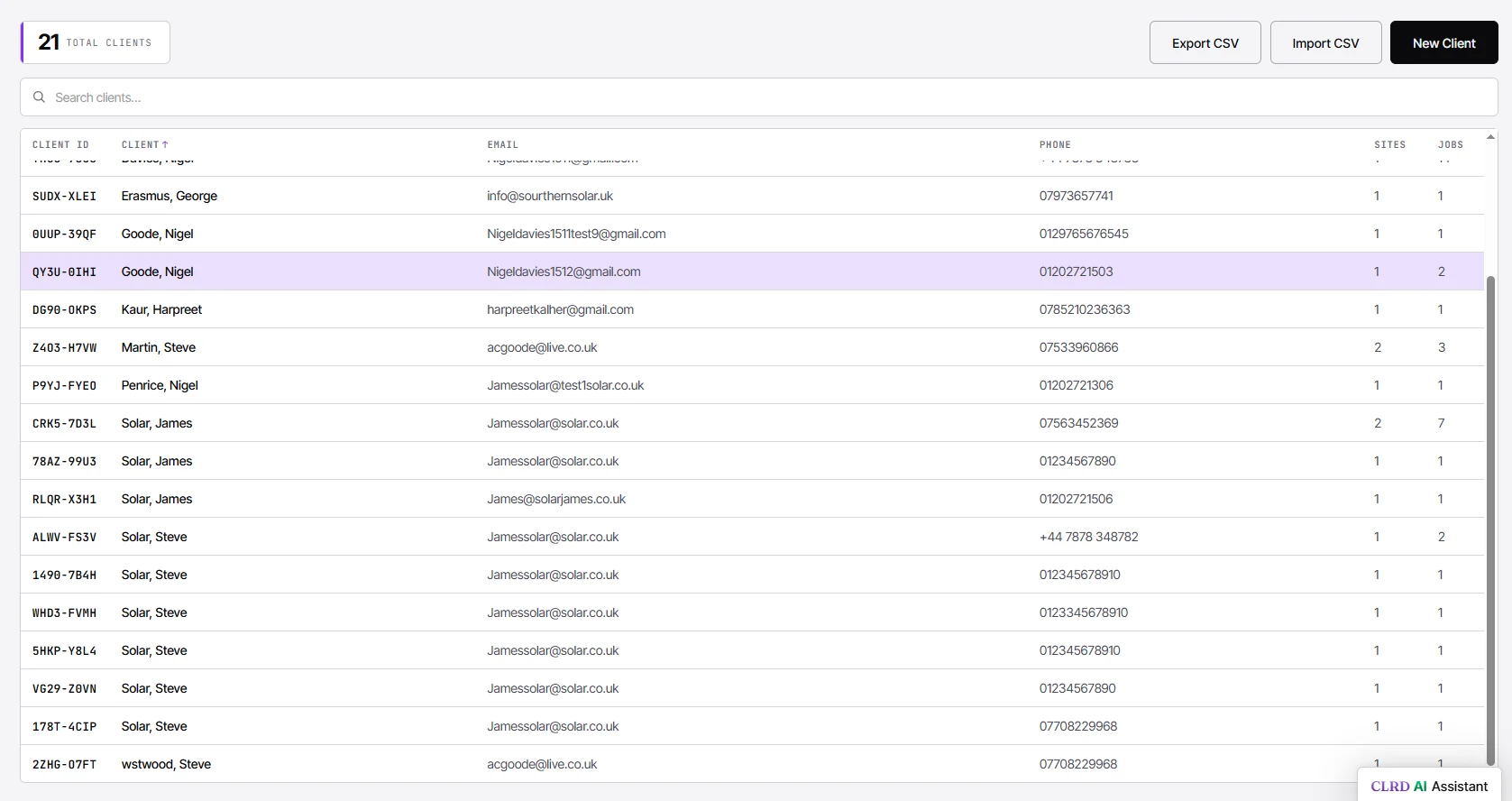
- Import clients and sites from any spreadsheet or CRM export: a CSV with a header row.
- A preview of what was found before anything is saved.
- Every row checked like the normal forms. Rows that fail are listed by row number, and the rest import.
- No duplicate customers: a client whose email or phone is already in your book is caught, and the existing record named.
- Export your clients and sites as CSV any time. The files import straight back, so your data is never locked in.
- A jobs report from the Jobs page: one row per job, with its status, G98 or G99 route, client, site and system totals.
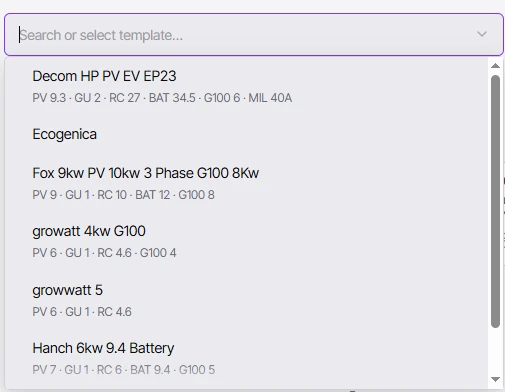
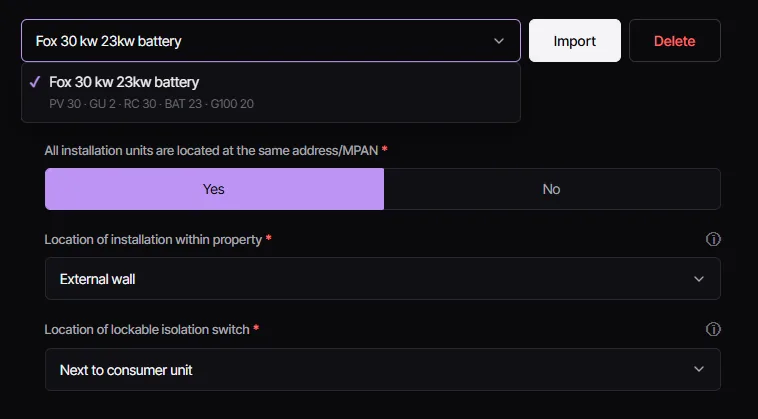
- Job templates save the System Details: technologies, devices, export limit and the rest. Pick one on a new job and press Import.
- A job at a site CLRD has seen before brings in the existing equipment from the earlier job.
- CSV import and job templates are on every plan, with no API needed.
 Enlarge
The workflow
From spreadsheet to DNO pack, without retyping.
Import once, save your templates once, and every job after that is picked rather than typed.
- 01
Import your client and site book
Export your customers from your spreadsheet or CRM and press Import CSV on the Clients or Sites page. CLRD shows you what it found before anything saves. Every row is checked the way the normal forms check it, so a bad MPAN or a customer you already have is caught, with the row number, and the rest go in.
 Enlarge
 - 02
Save your standard installs as templates
Build the System Details for an install you do week in, week out, and press Save as Template. The devices, the export limit, the locations: all of it saved under a name you'll recognise. Do it once for each of your regular systems.
Enlarge - 03
Start the job from your book
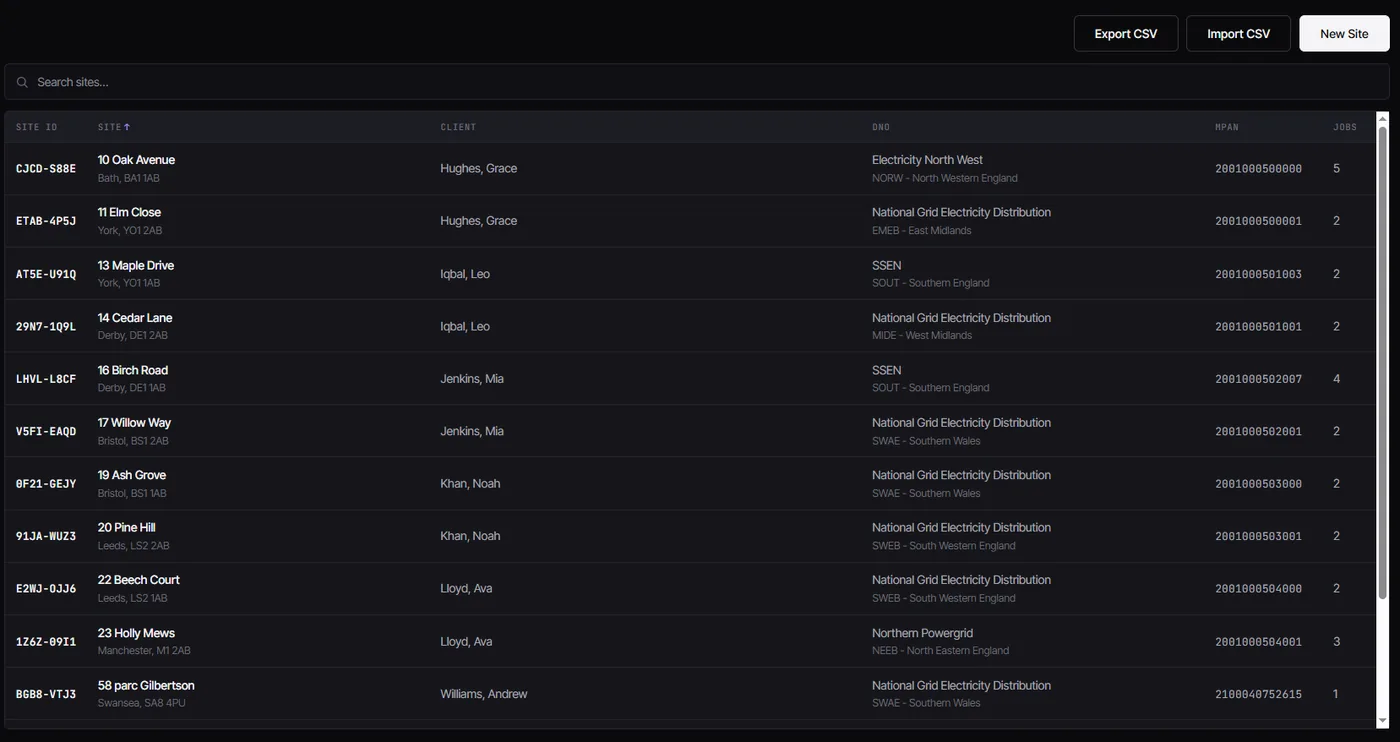
New job: pick the client and the site from the book you imported. The address, the MPAN and the DNO are already there. If CLRD has seen that site before, the existing equipment comes in from the earlier job too.
 Enlarge
 - 04
Import the template
On System Details, pick the template and press Import. The system fills in, and you only change what's different about this job.
 Enlarge
 - 05
Confirm, and the pack is built
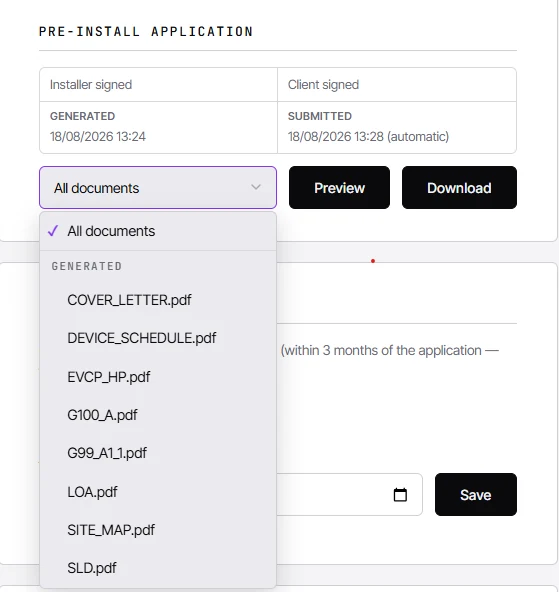
CLRD routes the job, G98 or which G99 procedure, and builds every document the route calls for, ready to submit.
 Enlarge
In practice
What changes on the next job.
Nothing typed twice
Customers come in from your spreadsheet, systems from your templates.
Mistakes caught at the door
Bad rows are flagged by number before they reach a form.
Your data stays yours
Export any time, in files that import straight back.
Before & after
With CLRD vs. without.
Questions
CSV import and templates, straight.
What can I import by CSV?
What happens to rows with mistakes?
Can I get my data back out?
What's saved in a job template?
Which plans include it?
Bring your spreadsheet. We'll import it on the call.
A 20-minute demo with a real install, yours or ours.