Feature · Submission tracking
Every application tracked, from sent to approved.
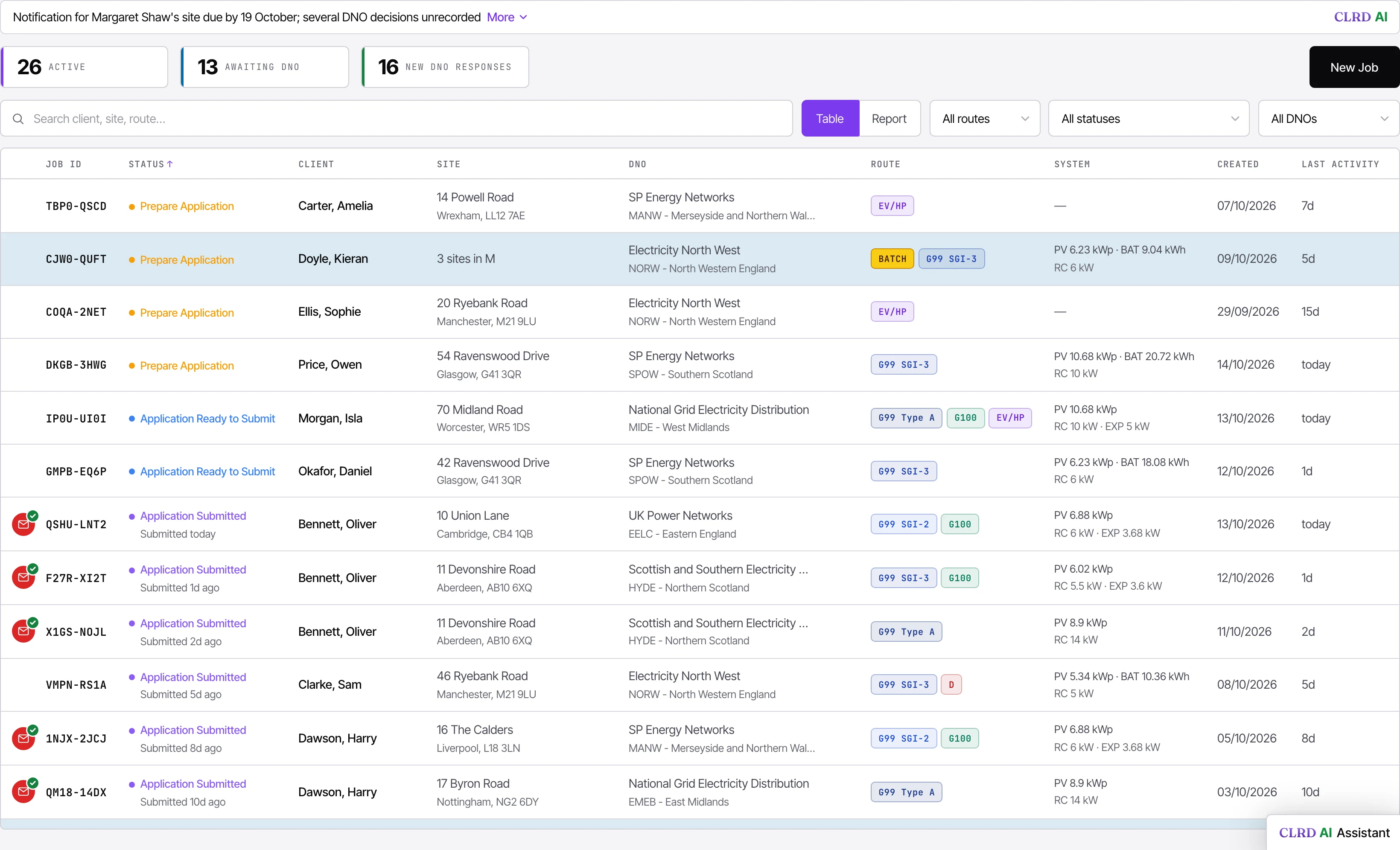
Every job by stage in the Workflow view, an Approval ETA while you wait, a quiet DNO flagged, and the approval sent to your client in one click.
First job free. No card to start.
What it is
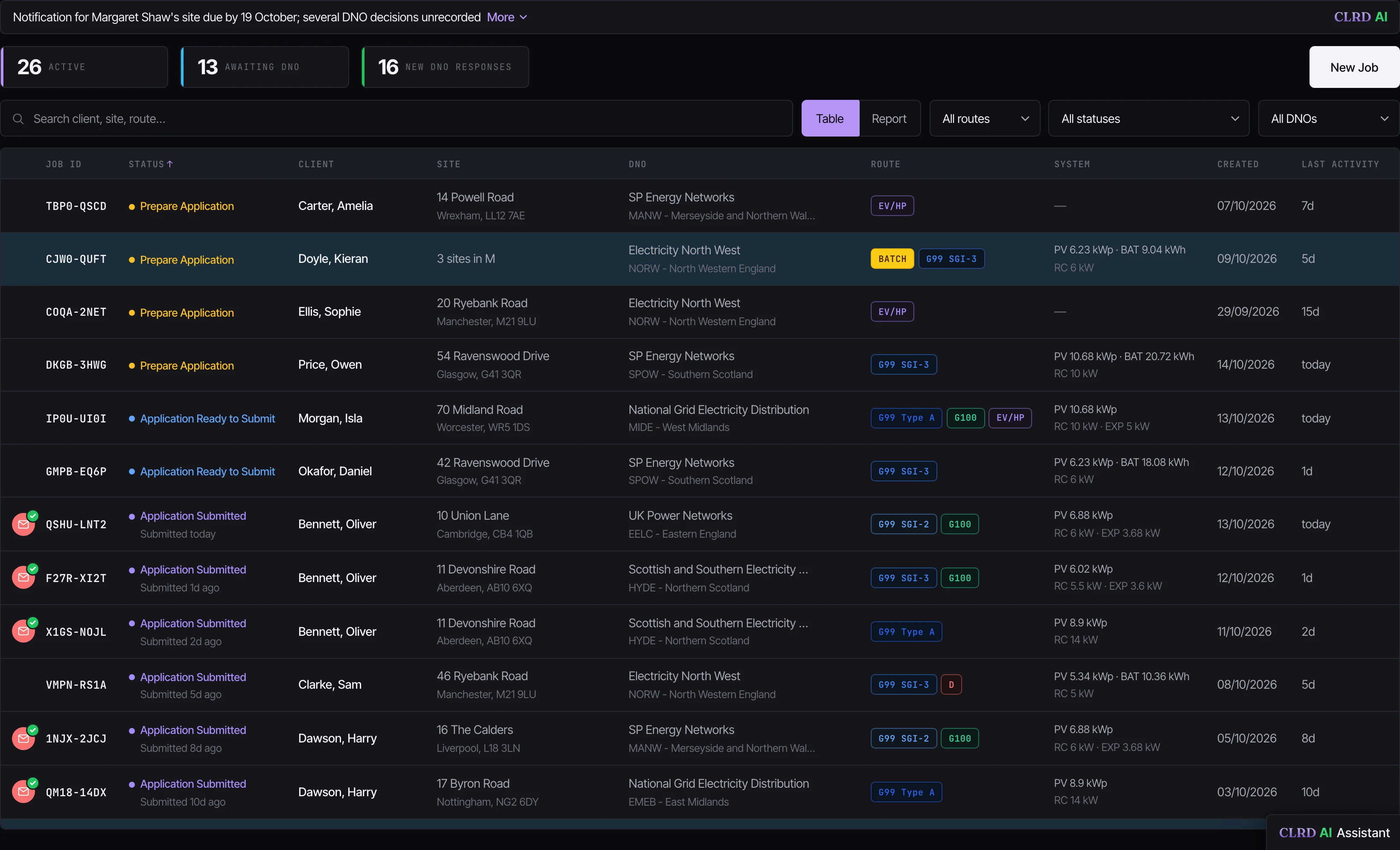
Once an application is sent, CLRD keeps track of it for you. Switch the Dashboard or Jobs page to the Workflow view and every job sits under its stage, from Not sent yet through Waiting on the DNO, Decision needed and Notification submitted to Complete, each one showing what happens next: an Approval ETA while you wait, Amend by if the DNO wants a change, Notify by once it's installed. Replies land on the job's own thread, a DNO that goes quiet is flagged, and when the approval or connection offer arrives, one click sends it on to your client.
Why it matters
The wait on the DNO is where jobs go missing. An application nobody has heard back on, an approval that lapses before the install, a client ringing to ask whether they're approved: none of it shows until someone goes looking. Tracking it by hand means a spreadsheet, a diary and an inbox search. CLRD tracks it on the job, so the answer to "where are we?" is one screen.
For anyone with more than a handful of jobs waiting on a DNO. On every plan.
- The Workflow view on the Dashboard and Jobs pages: a tab for each stage, from Not sent yet, Waiting on the DNO, Decision needed and Detected approval to Awaiting installation, Notification due, Notification submitted and Complete, each with its count.
- Notification submitted keeps a job open after its notification goes, until you mark it complete: the DNO may still acknowledge it or ask for a correction, and the card shows whether their letter has gone to your client.
- On every job, what's next: an Approval ETA while you wait, Amend by or Action needed when the DNO answers, Notify by after the install, and how many working days approval took.
- Before you send, the job shows how long approval usually takes for its DNO and route, where CLRD has the figures. After, it tells you when one is taking longer than usual.
- A quiet DNO is flagged: no acknowledgement within 2 working days at operators that send one automatically (10 elsewhere), or no decision after 28 days.
- Replies from every DNO land on the job's own thread, not a shared inbox, with unread badges in the app and new DNO mail in one morning email.
- Automatic acknowledgements fold into a single line, and the DNO's reference is filled in from them where it's there to read.
- When the approval or connection offer arrives, CLRD reads it and fills in the reference and any export limit for you to confirm.
- Once you've confirmed it, one click sends the DNO's letter to your client, or the DNO's email itself where they answered by email. It goes from CLRD, and your client's reply comes back to you.
- A connection offer that needs accepting? Where CLRD holds the operator's acceptance form, the Approve popup sends it back signed, with any charge stated first.
- Countdowns on the job: the 28 days to notify after commissioning, and how long the approval stays valid.
- Export the jobs as CSV: one row per job with its key dates, from the customer's signature to the notification, and the stage it's at.
- On every plan.
 Enlarge
In practice
What changes on the next job.
Where every job stands
One screen, by stage, with the next date on each job.
No silent DNOs
A DNO that hasn't answered is flagged before anyone has to remember to chase.
Clients kept informed
Approved? The letter is with your client in one click.
Nothing lapses
Notify-by and approval countdowns on the job itself.
Before & after
With CLRD vs. without.
Questions
The details, straight.
Is the Workflow view an extra?
Which DNOs' approvals does CLRD read?
What does my client receive?
See your own jobs tracked, sent to approved.
Run one of your own installs through it free. Or book twenty minutes and we'll do it with you.
First job free. No card to start.